
banner图片无法显示,请联系管理员

How I Successfully Installed Windows 11 on Alliwava U58 Using the OEM Image

nathanfallet

New member
Step-by-Step Solution:
  1. Download the correct OEM files for your CPU (Ryzen 7 5800U or 5825U) from the Alliwava official website.
  2. Prepare a USB drive:
    • Format the USB as NTFS (FAT32 will split the .wim into .swm which causes issues).
    • Rename the USB drive to WINPE (all caps).
  3. Copy all files from the OEM ZIP to the root of the USB.
    • Keep the original folder structure (Boot, EFI, images, sources, Scripts, etc.).
    • Use the original install.wim, do not modify or move it.
  4. Boot the U58 from the USB drive (set it first in the BIOS boot order).
  5. Let the OEM script run:
    • The script will detect the SSD, partition it, apply Windows, and install drivers.
    • You may see Audit Mode with the Sysprep popup at the first login — this is normal.
  6. Handle the Sysprep popup correctly:
    • Choose System Cleanup Action → Enter System Out-of-Box Experience (OOBE)
    • Do NOT check “Generalize”
    • Choose Shutdown and click OK.
  7. Remove the USB and restart the PC.
  8. Complete the OOBE:
    • Select region, keyboard layout, account setup, etc.
    • Windows 11 should now boot normally with all OEM drivers installed.

Notes / Tips:
  • Do not attempt to modify the OEM scripts or move SWM files manually, it will break the installation.
  • This method works even if standard Windows ISOs fail to detect the NVMe SSD.
  • After this, you can shrink the Windows partition and install Ubuntu for dual-boot if desired.
 

MSony

New member
The official website currently only has OEM WIN available for the 5825U, not for the 5800U, the bios is posted instead.
 

Alliwava

Administrator
Staff member
The official website currently only has OEM WIN available for the 5825U, not for the 5800U, the bios is posted instead.
Hello, the U58 Slim has a Ryzen 7 5800U processor, you can download and install it directly.
 

Alliwava

Administrator
Staff member
Could you please check the official link I just copied here? Before you say that I copied the bios link here. Because these link is listed on the website instead of the win11 link. Thanks.
Hello,
Thank you for the reminder.
The webpage has been fixed.
 

MZI79

New member
Hello, I have a problem with the Gx55!
Purchased 12/12/2025
Pc goes straight into Bios!
I have managed to get this guide!
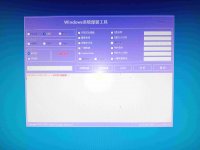
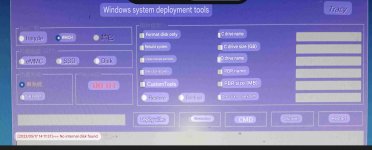
See the picture and i can't get any further.The main problem is that the interface is in Chinese.20260103_095448.jpg
 

MSony

New member
Don't worry. You can use google translator on picture
 

Attachments

  • Screenshot_20260103_140822_com_google_android_googlequicksearchbox_LensExportedAct.jpg
    Screenshot_20260103_140822_com_google_android_googlequicksearchbox_LensExportedAct.jpg
    672.1 KB · Views: 3

MZI79

New member
Don't worry. You can use google translator on picture
Okay, thanks, that was a good idea!

Unfortunately, it didn't help either, as the NVMe drive isn't being recognized.

I'm a complete novice in this area and I'm just stuck!

Cheers
 

MSony

New member
Okay, thanks, that was a good idea!

Unfortunately, it didn't help either, as the NVMe drive isn't being recognized.

I'm a complete novice in this area and I'm just stuck!

Cheers
The image you uploaded is not the bios. It is a completely different program. When you enter the bios, on the last tab (where you can save changes) select the usb drive you want to install windows from.
 
Top